Files Module Recipe
The Files module is a ready-made /files experience on top of the
Files API. Instead of hand-building upload zones,
folder navigation, previews, and bulk actions, you scaffold the whole thing with
one command and own the code.
It gives you two screens:
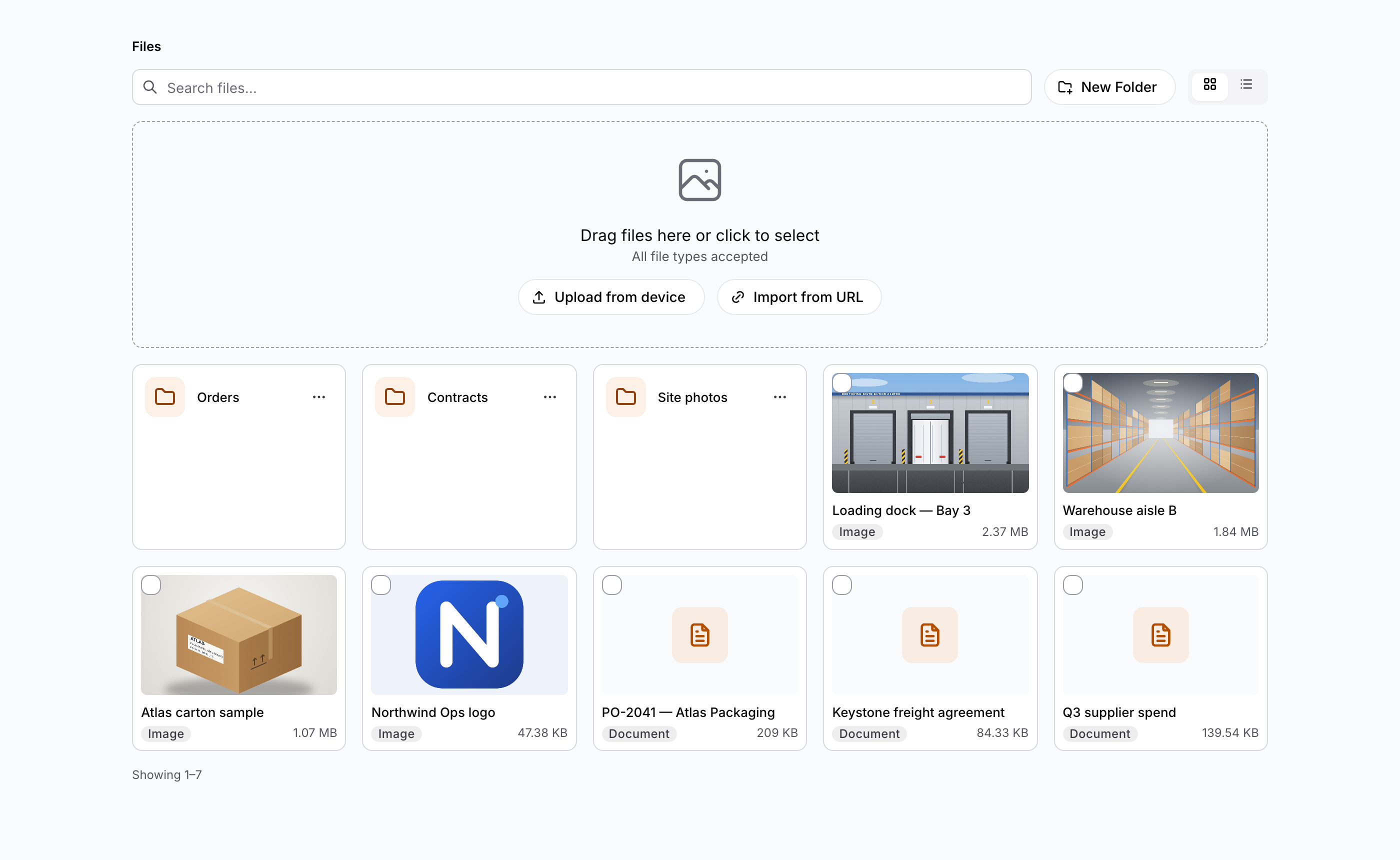
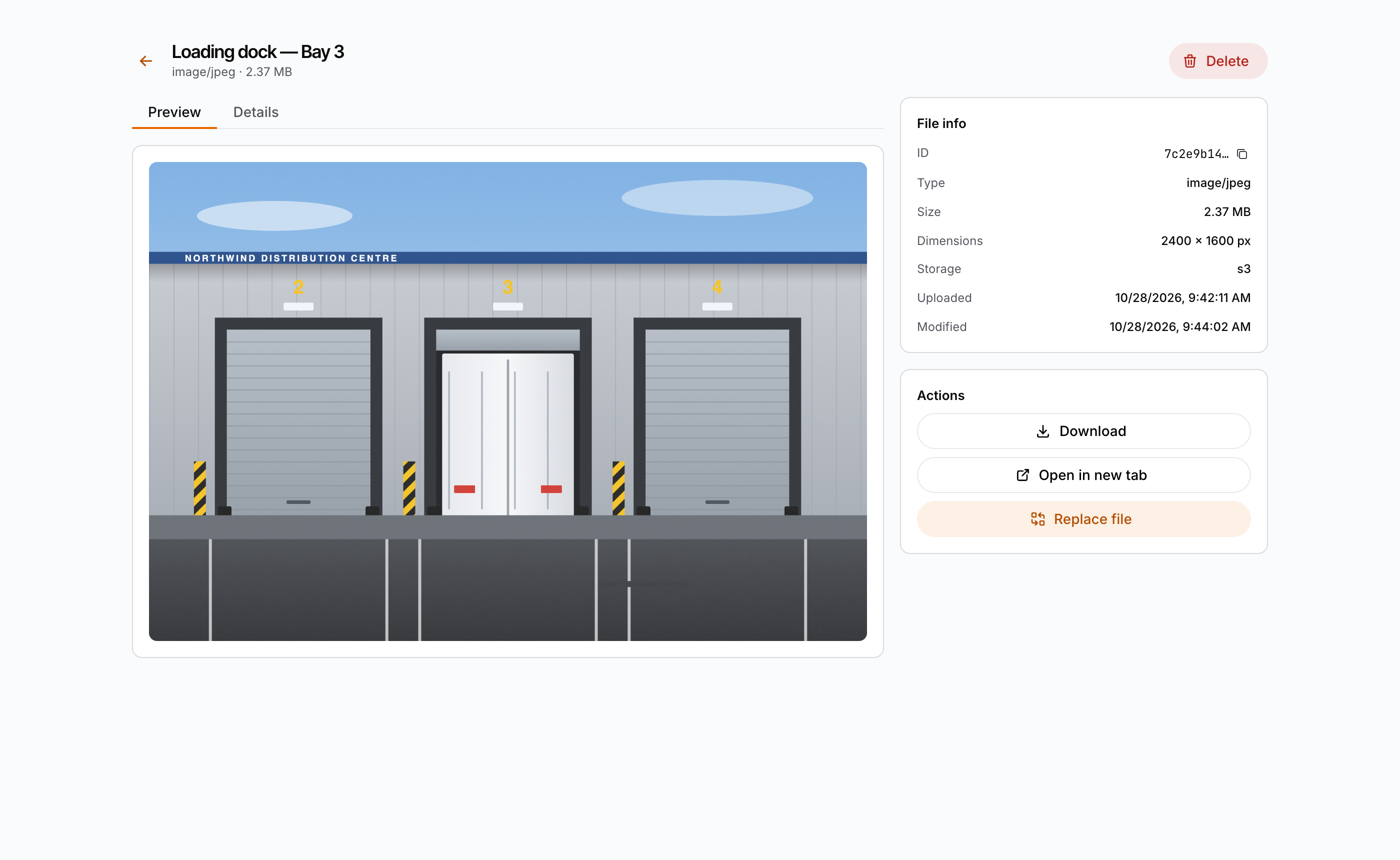
FileManager— the/fileslibrary: drag-and-drop upload, import-from-URL, folder navigation with breadcrumbs, grid/list views, search, multi-select, and bulk delete.FileDetail— the/files/[id]page: a Preview tab (image, video, audio, and PDF rendered inline) and a Details tab with an editable metadata form (title, description, tags, location, download filename), plus single delete.
The pieces
| Piece | Package | Role |
|---|---|---|
FileManager | @buildpad/ui-files | The library view: upload, folders, grid/list, search, selection, bulk delete |
FileDetail | @buildpad/ui-files | The detail view: preview tabs + editable metadata form + delete |
Upload | @buildpad/ui-interfaces | The drag-and-drop / file-picker / import-from-URL affordance (reused by FileManager) |
useFiles | @buildpad/hooks | Upload, list, get, update, delete, and import-from-URL operations |
useFolders | @buildpad/hooks | List, create, rename, and delete folders |
This recipe is opt-in — it is not part of bootstrap. Generate the
app/[lang]/(authenticated)/files/ module with buildpad add files-routes; it pulls in the
file-manager component (which in turn pulls the upload component and the
types / hooks / services lib modules). The code below is that generated
module, shown so you understand the wiring. In a generated app the imports point
at your local copies (@/components/ui/file-manager, @/lib/buildpad/hooks);
when consuming the packages directly, import from @buildpad/ui-files and
@buildpad/hooks instead.
Install
Add the module
buildpad add files-routesThis copies the page shells into app/[lang]/(authenticated)/files/, the component into
components/ui/file-manager/, the upload component into components/ui/, and
the useFiles / useFolders hooks into lib/buildpad/hooks/.
Add the API routes
The module talks to your DaaS through proxy routes. If you haven’t already added them, run:
buildpad add api-routesThis includes the routes the module needs: app/api/files/route.ts,
app/api/files/[id]/route.ts, app/api/files/import/route.ts,
app/api/folders/route.ts, app/api/folders/[id]/route.ts, and
app/api/assets/[id]/route.ts.
The routes
Two files give you the whole module. They live under the (authenticated)
route group, so they render inside the App Shell:
app/[lang]/(authenticated)/files/
├── page.tsx            # /files       — the FileManager library view
└── [id]/page.tsx       # /files/[id]  — the FileDetail preview + metadata view
The list view
app/[lang]/(authenticated)/files/page.tsx renders FileManager wired to the router so clicking a file
opens its detail page. Upload, folders, search, view toggle, and bulk delete are
all built in.
"use client";

import React from 'react';
import { useLocaleRouter } from '@/lib/i18n/navigation';
import { FileManager } from '@/components/ui/file-manager';

export default function FilesPage() {
  const router = useLocaleRouter();

  return <FileManager onFileClick={(file) => router.push(`/files/${file.id}`)} />;
}
FileManager props: onFileClick (open a file), pageSize (default 24),
defaultView ('grid' | 'list'), and enableFolders (default true — set
false for a flat library with no folder UI).
URL state (shareable views)
FileManager persists its settled state in the query string by default —
?search=…, ?folder=<id>, and ?page=… — so a filtered library view can be
shared, reloaded, or bookmarked. Writes replace the current history entry
(Back leaves the page rather than replaying keystrokes) and ride the built-in
300 ms search debounce. A deep-linked ?folder= id rebuilds its breadcrumb
automatically.
In a Next.js App Router app the writes go through router.replace, which the
DaaSProviderWrapper template registers with registerUrlStateWriter — this
is required, not optional: native history.replaceState is invisible to
useSearchParams and the router re-asserts its own URL over it, silently
dropping the parameters. If you have customised DaaSProviderWrapper, keep
that registration; in development the hook warns once when it detects Next.js
and no writer.
Turn it off for embedded surfaces with urlParams={false}, or namespace the
parameters with urlParamPrefix="files-" when two url-synced lists share one
page. Defaults (empty search, root folder, page 1) stay off the URL entirely.
The detail view
app/[lang]/(authenticated)/files/[id]/page.tsx renders FileDetail, which fetches the file, shows the
Preview/Details tabs, saves metadata, and handles deletion.
"use client";

import React, { use } from 'react';
import { useLocaleRouter } from '@/lib/i18n/navigation';
import { FileDetail } from '@/components/ui/file-manager';

export default function FileDetailPage({
  params,
}: {
  params: Promise<{ id: string }>;
}) {
  const { id } = use(params);
  const router = useLocaleRouter();

  return (
    <FileDetail
      id={id}
      onBack={() => router.push('/files')}
      onDeleted={() => router.push('/files')}
    />
  );
}
The data layer
Both screens are thin — all the work lives in two hooks you can reuse anywhere.
useFiles returns uploadFiles, fetchFiles, getFile, updateFile,
deleteFile, deleteFiles, and importFromUrl. updateFile accepts the full
editable metadata set:
const { updateFile } = useFiles();

await updateFile(fileId, {
  title: 'Cover image',
  description: 'Homepage hero',
  tags: ['marketing', 'hero'],
  location: 'HQ',
  filename_download: 'hero.png',
});
useFolders returns fetchFolders, createFolder, updateFolder, and
deleteFolder. Scope a listing to a parent (pass null for root):
const { fetchFolders, createFolder } = useFolders();

const rootFolders = await fetchFolders({ parent: null });
const folder = await createFolder({ name: 'Campaigns', parent: null });
Thumbnails and previews are served by /api/assets/[id]. Use getAssetUrl(id, …)
from @/lib/buildpad/types to build transform URLs — e.g.
getAssetUrl(id, { width: 240, height: 240, fit: 'cover' }) for a grid thumbnail,
or getAssetUrl(id, { download: true }) for a download link.
Preview behaviour
The Preview tab renders inline based on MIME type:
| Type | Behaviour |
|---|---|
| Image | <img> rendered inline |
| Video | HTML5 <video> player |
| Audio | HTML5 <audio> player |
Embedded <iframe> | |
| Anything else | File icon + a download button |
RBAC behaviour
- The gates come from
usePermissions().canPerform(collection, action)ondaas_files(override withfilesCollection). Administrators pass every gate. The upload zone and New Folder needcreate; a folder’s Rename, a file’s Edit, Replace file and the metadata form needupdate; Delete (a file, a folder, the bulk bar) needsdelete. Download and the preview are read functionality and are never gated. - Until the permissions are known, no write control is drawn: no upload zone (so nothing to drop a file on), no New Folder, no folder menu, no Edit or Delete in a row menu, no bulk bar, no Delete or Replace on the detail page, and a disabled metadata form. The controls appear when the answer is in, so a user without a right does not see its button first. Reading does not wait: the library, the file and its preview load at once. A later refresh of the permissions (a renewed token, another scope) keeps the controls as they were until its answer is in.
- The gates only hide controls. The API enforces the same collection, so a hidden button is not the protection.
Prerequisites
- The module must live under your authenticated layout so
DaaSProvideris above it —buildpad initgenerates this asapp/[lang]/(authenticated)/with aDaaSProviderWrapper. The hooks call your/api/files/*,/api/folders/*, and/api/assets/*proxy routes. - No extra styling is needed: the components consume the design tokens through the Mantine theme. See the Styleguide for the token reference.
See the components live
Every state of the Files module is in the Files Storybook — FileManager,
FileDetail, FilePreview, and the supporting pieces. Run it locally with
pnpm --filter @buildpad/ui-files storybook (port 6009). The Live DaaS
stories of FileManager and FileDetail connect to a real DaaS instance
through the storybook-host proxy.