Cron Jobs Module Recipe
The Cron Jobs module is the admin surface for the scheduler of your DaaS backend. A job is a JavaScript snippet the server runs on a schedule (a cron expression read in a timezone) or on demand. A run is one execution of a job: its outcome, what started it, how long it took, and its console output.
The module gives you two screens:
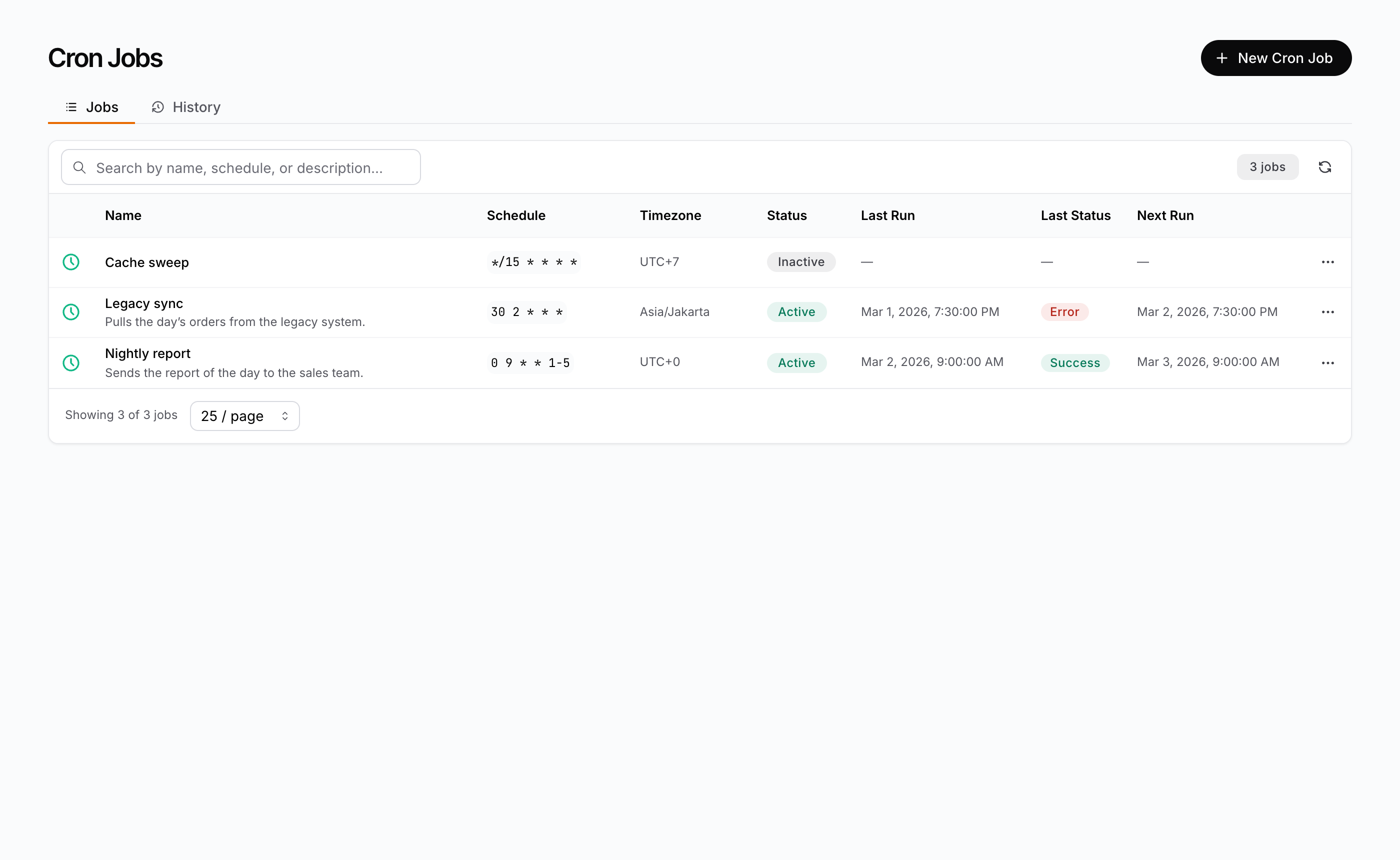
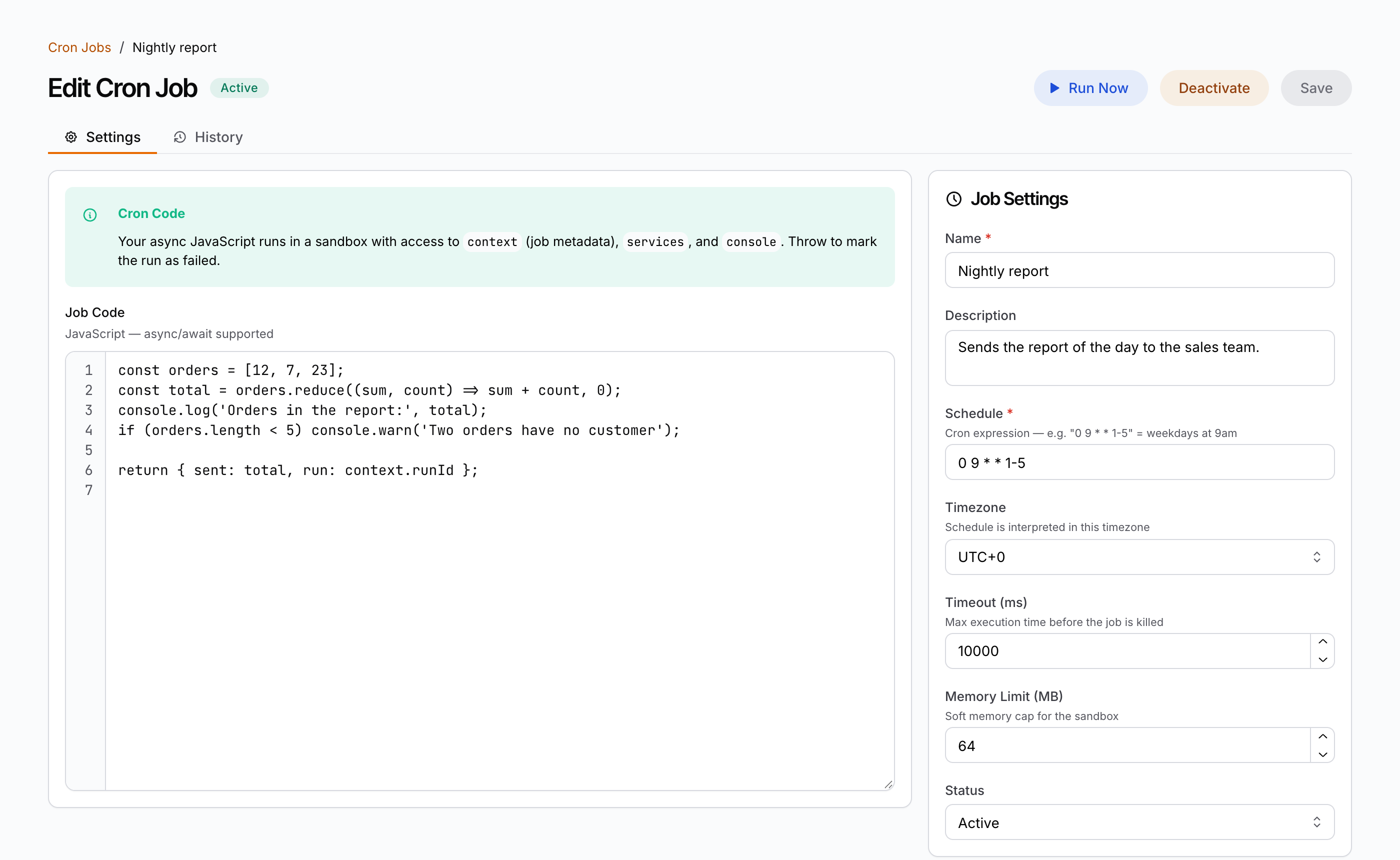
CronJobsManager— the/cronpage. A Jobs tab lists the jobs: search by name, schedule or description, refresh, pagination, and a row menu with Edit, Run Now, Activate or Deactivate, Clone and Delete. A History tab lists the runs of every job.CronJobDetail— the/cron/[id]editor: the job’s code beside its settings (name, description, schedule, timezone, timeout, memory limit, and status for a stored job), with Run Now, Activate or Deactivate and Save in the header. A second tab holds the run history of that job.
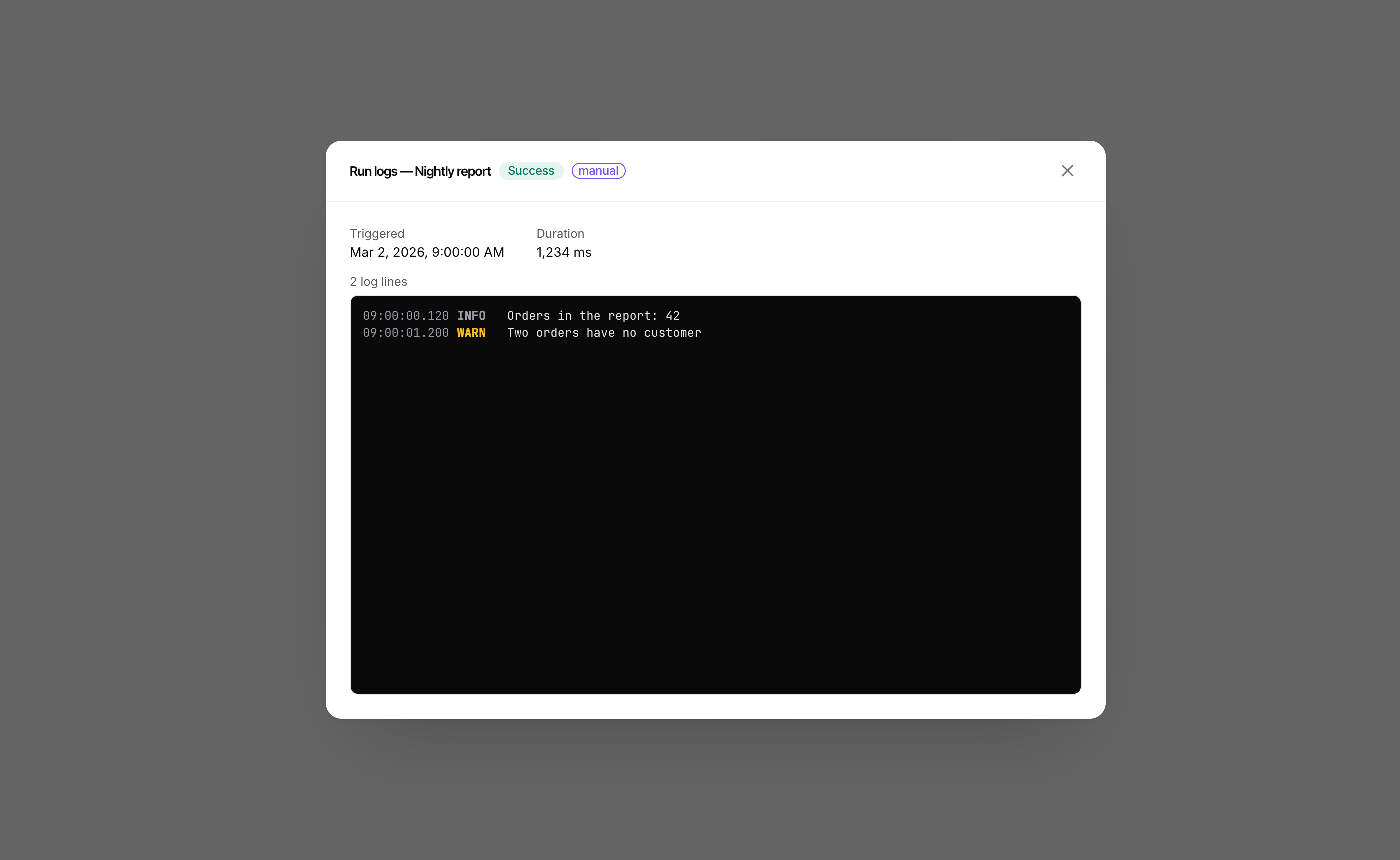
A row of either history opens the run log: the outcome, the trigger, the time, the duration, the error, and the console output line by line.
The pieces
| Piece | Package | Role |
|---|---|---|
CronJobsManager | @buildpad/ui-cron | Jobs list: tabs, search, count, table, row menu, pagination, and the history of every job |
CronJobDetail | @buildpad/ui-cron | Job editor: code, settings, header actions, and the history of the job |
CronRunsTable | @buildpad/ui-cron | The run history on its own: the runs of every job, or of one (jobId). It owns its load, its Refresh button and its pager |
CronRunLogModal | @buildpad/ui-cron | The run log dialog of one run |
CronJobStatusBadge / CronRunStatusBadge / CronTriggerBadge | @buildpad/ui-cron | A job’s status (Active or Inactive); a run’s outcome (Success, Error, Timeout or Running); what started a run (schedule, manual or extension) |
CronCodeEditorProps | @buildpad/ui-cron | The contract of the editor’s renderCodeEditor slot (a type) |
VTable | @buildpad/ui-table | The table both lists render |
InputCode | @buildpad/ui-interfaces | The built-in code editor: a monospace textarea with line numbers, no highlighting |
useCronJobs / useCronRuns | @buildpad/hooks | The data layer: list, get, create, update, delete, clone and run a job; list runs |
DaaSRequestError | @buildpad/hooks | The typed error every method of those hooks rejects with |
| Cron types and collection names | @buildpad/types | CronJobRecord, CronRunRecord, CronRunResult, CRON_JOBS_COLLECTION, … |
| Form logic | @buildpad/utils | Pure functions that fill the form from a job, build a save from what changed, and take a log line apart |
This recipe is opt-in — it is not part of bootstrap. Generate the
module with buildpad add cron-routes; it pulls in the cron-management
component (which in turn pulls the vtable and input-code components and
the types / hooks / services / utils lib modules). It adds no npm
package. In a generated app the imports point at your local copies
(@/components/ui/cron-management, @/lib/buildpad/hooks); when consuming
the packages directly, import from @buildpad/ui-cron and @buildpad/hooks
instead.
Install
Add the module
buildpad add cron-routesThis copies:
- two page shells into
app/[lang]/(authenticated)/cron/; - the components into
components/ui/cron-management/(21 files); - the
vtableandinput-codecomponents intocomponents/ui/, when the app does not have them; - the cron hooks, types and form logic into
lib/buildpad/.
It also adds Cron Jobs to the sidebar under the Automation group
(components/layout/navigation.ts — see
App Shell). The
Workflows module uses the same group. Entries are matched by
href, so a second run does not duplicate them and your edits stay.
The sidebar label is a dictionary key: app.nav.cron, with
app.nav.automation for the group. A new app has them. An app created before
this module gets them with buildpad upgrade i18n; until then the sidebar
shows the English labels.
To install only the components, without pages or sidebar entries:
buildpad add cron-managementPoint the app at your DaaS
The module has no proxy routes. The browser calls the DaaS directly: every
request goes to the URL in NEXT_PUBLIC_BUILDPAD_DAAS_URL, with the session
token that DaaSProviderWrapper supplies.
NEXT_PUBLIC_BUILDPAD_DAAS_URL=https://your-daas.example.comBecause the calls are cross-origin, the DaaS must allow your app’s origin
(its CORS_ORIGINS setting). Without that, the list shows its load-error
state.
The routes
Two files give you the whole module:
app/[lang]/(authenticated)/
└── cron/
    ├── page.tsx            # /cron       — CronJobsManager
    └── [id]/page.tsx       # /cron/[id]  — CronJobDetail (use /cron/new to create)
The components do not navigate. Each page passes router callbacks, so your router (and its locale prefix) decides where a click goes.
The list view
The list page renders the manager wired to the router. A click on a row opens
the editor. The New Cron Job button navigates to the new route.
"use client";

import React from 'react';
import { useLocaleRouter } from '@/lib/i18n/navigation';
import { CronJobsManager } from '@/components/ui/cron-management';

export default function CronJobsPage() {
  const router = useLocaleRouter();

  return (
    <CronJobsManager
      onJobClick={(job) => router.push(`/cron/${job.id}`)}
      onCreateJob={() => router.push('/cron/new')}
    />
  );
}
A row opens for every user who can read the list. A user without update
access gets the editor read-only. Without onJobClick rows do not open and
the row menu has no Edit. Without onCreateJob the New Cron Job button is not
drawn.
A load that fails is never drawn as an empty list. A refusal draws an access-denied state. Any other failure draws a load-error state with the server’s message, and a notification. A failed delete keeps the confirm dialog open and shows the server’s message, so the user can retry or cancel. After a delete empties the last page, the list loads the page before it.
Run Now, Activate, Deactivate and Clone show a pending row menu while they run and take no second click. The Run Now request is answered when the run has ended, not when it starts; the list reloads then. A job that was already running is not started again, and the notification says so.
Next Run is shown for an active job only.
The jobs table and the two history tables share the width of their container. The icon and the badges have a fixed column; the other columns take what is left over, the name (and the Logs column of a history) most of it. In a container of 970 px or more every column is on screen, the row menu and the View logs button included, and no table scrolls sideways. A name, description, schedule, timezone or error that is longer than its column ends in an ellipsis, and the whole text is its tooltip. In a narrower container the table scrolls sideways.
URL state (shareable views)
The jobs list keeps its search, its page and the open tab in the query string
by default — ?search=…&page=2&tab=history — so a view can be shared,
reloaded or bookmarked. Writes replace the current history entry and wait for
the 300 ms search debounce. Defaults (empty search, page 1, the Jobs tab) stay
off the URL.
In a Next.js App Router app the writes go through router.replace, which the
DaaSProviderWrapper template registers with registerUrlStateWriter. This
is required there. If you have customised DaaSProviderWrapper, keep that
registration.
Turn it off for an embedded list with urlParams={false}. Use
urlParamPrefix="cron-" when two lists share one page.
The History tab’s page, and the tab of the editor, are not kept in the URL.
The detail view
The detail page reads the route parameter and passes it as id. id="new"
means create.
"use client";

import React, { use } from 'react';
import { useLocaleRouter } from '@/lib/i18n/navigation';
import { CronJobDetail } from '@/components/ui/cron-management';

export default function CronJobDetailPage({
  params,
}: {
  params: Promise<{ id: string }>;
}) {
  const { id } = use(params);
  const router = useLocaleRouter();

  return (
    <CronJobDetail
      id={id}
      onBack={() => router.push('/cron')}
      onCreated={(job) => router.push(`/cron/${job.id}`)}
    />
  );
}
Navigate after a create. The editor does not navigate. After a successful
create it goes on as the editor of the stored job: a further Save updates that
job, and does not create a second one. The URL still says /cron/new, though,
and a reload would open an empty form. onCreated receives the stored job
with its new id. Navigate there to /cron/${job.id} (as the generated page
does) or to the list.
After a save of an existing job the editor stays open and shows the job as it
is stored now. onSaved is called with that job; the generated page does not
need it.
onBack is called by the breadcrumb, and by the Back button of the not-found,
access-denied and load-error states. Without onBack none of those controls
is drawn.
Component props
Every component also takes translations, a partial override of the cron
dictionary namespace for that one instance.
CronJobsManager
| Prop | Default | Purpose |
|---|---|---|
onJobClick(job) | — | Row click, the job’s name (a button), and the row menu’s Edit |
onCreateJob() | — | The New Cron Job button |
collection | 'daas_cron_jobs' | Collection the permission checks use |
pageSize | 25 | Initial jobs per page |
pageSizeOptions | [10, 25, 50, 100] | Choices of the footers’ page-size selectors |
historyPageSize | 50 | Initial runs per page on the History tab |
hideHeader | false | Hide the heading of an embedded list. The New Cron Job button stays |
urlParams | true | Keep search, page and tab in the query string |
urlParamPrefix | '' | Prefix for the managed URL parameters |
CronJobDetail
| Prop | Default | Purpose |
|---|---|---|
id (required) | — | Id of the job, or 'new' to create one ('+' is read as 'new') |
onBack() | — | Breadcrumb, and the Back button of the failure states |
onCreated(job) | — | Called after a successful create with the stored job. Navigate here |
onSaved(job) | — | Called after a successful save of an existing job, with the job as it is stored now |
collection | 'daas_cron_jobs' | Collection the permission checks use |
readOnly | false | Show the job with no way to change it: a read-only form, and no Run Now, Activate, Deactivate or Save. A user without update access (create, for a new job) gets this view in any case |
defaultCode | DEFAULT_CRON_CODE | The code a new job starts with |
codeHelp | the dictionary’s sentence | What the “Cron Code” notice above the editor says |
timezoneOptions | CRON_TIMEZONE_OPTIONS | The options of the Timezone select ({ value, label }). The default is the 26 whole-hour UTC offsets |
renderCodeEditor(props) | the built-in editor | Draws the code editor; see The code editor |
codeEditorMinHeight | 440 | Height the code editor should at least have, in pixels |
historyPageSize | 50 | Initial runs per page on the History tab |
CronRunsTable
Use it on its own to show runs on another page.
| Prop | Default | Purpose |
|---|---|---|
jobId | — | List the runs of this job only. Without it, the runs of every job the caller can read |
showJobColumn | true without jobId, false with it | Show the Job column, and name the job in the run log’s title |
pageSize | 50 | Initial runs per page |
pageSizeOptions | [10, 25, 50, 100] | Choices of the footer’s page-size selector |
refreshKey | — | Change this value to have the table load its current page again. The first value loads nothing extra |
data-testid | 'cron-runs-table' | Prefix of the data-testids the table sets |
import { CronRunsTable } from '@/components/ui/cron-management';

<CronRunsTable jobId={job.id} pageSize={25} />
CronRunLogModal
CronRunsTable renders it. Use it directly only when you list runs yourself.
| Prop | Default | Purpose |
|---|---|---|
run (required) | — | The run to show (CronRunRecord). null closes the dialog |
onClose() (required) | — | Close button, Escape, and a click outside |
showJobName | true | Name the job in the title |
The badges
| Component | Prop | Purpose |
|---|---|---|
CronJobStatusBadge | status (required) | 'active' or 'inactive'. null or undefined draws the missing-value marker |
CronRunStatusBadge | status (required) | 'success', 'error', 'timeout' or 'running'. null or undefined draws the missing-value marker |
CronTriggerBadge | triggeredBy (required) | 'schedule', 'manual' or 'extension' |
Each also takes size (a Mantine size) and data-testid.
The editor
- A new job starts with the schedule
0 9 * * 1-5, the timezone UTC, a timeout of 10000 ms, a memory limit of 64 MB, and the status Inactive. The Status field and the History tab appear once the job is stored. - The name, the schedule and the code are required. Whether the schedule is a valid expression and whether the code compiles is the server’s to say: a refused save shows the server’s sentence.
- Save is disabled while there is nothing to save. A save of an existing job sends only the fields that changed.
- Run Now and Activate are disabled while the form has unsaved changes. Save first. Deactivate is not: it stops the job at once, and the unsaved changes stay in the form.
- Run Now is answered when the run has ended. The editor then opens the History tab and loads it. A job that was already running is not started again, and the notification says so.
- Timeout and Memory Limit take whole numbers only. An emptied field falls back to its default when it loses focus.
- A stored timezone that is not one of the options is added as an option of its own, and is kept as it is stored.
A job can be answered without some of its fields, when the user’s read grant
on daas_cron_jobs leaves them out. Those fields are shown read-only and are
never sent. When the code is withheld, the editor shows a notice in place of
the code editor. It does not draw an empty editor.
The code editor
The built-in code editor is InputCode: a monospace textarea with line
numbers. It has no syntax highlighting, and the module adds no editor library
to your app.
To use your own editor, pass renderCodeEditor. It receives a
CronCodeEditorProps object:
| Field | Value |
|---|---|
value | The job’s code. Always a string; '' for none |
onChange(value) | Call it with the new code on every edit. Pass '', not null, for an emptied editor |
readOnly | true when the user may read the code but not change it. Show the code and take no edit |
minHeight | Height the editor should at least have, in pixels (codeEditorMinHeight) |
placeholder | The text to show while the editor is empty |
id | Put it on the element that takes the text |
aria-labelledby | The id of the “Job Code” label. Put it on the element that takes the text |
aria-describedby | The id of the line under the label |
This example uses CodeMirror. The two packages it imports are not part of the
module; install them in your app (pnpm add @uiw/react-codemirror @codemirror/lang-javascript).
"use client";

import React, { useMemo } from 'react';
import CodeMirror, { EditorView } from '@uiw/react-codemirror';
import { javascript } from '@codemirror/lang-javascript';
import type { CronCodeEditorProps } from '@/components/ui/cron-management';

export function HighlightedCronEditor({
  value,
  onChange,
  readOnly,
  minHeight,
  placeholder,
  id,
  'aria-labelledby': labelledBy,
  'aria-describedby': describedBy,
}: CronCodeEditorProps) {
  // The label and the description belong on the element that takes the text
  const extensions = useMemo(
    () => [
      javascript(),
      EditorView.contentAttributes.of({
        id,
        'aria-labelledby': labelledBy,
        'aria-describedby': describedBy,
      }),
    ],
    [id, labelledBy, describedBy],
  );

  return (
    <CodeMirror
      value={value}
      onChange={onChange}
      readOnly={readOnly}
      minHeight={`${minHeight}px`}
      placeholder={placeholder}
      extensions={extensions}
    />
  );
}<CronJobDetail
id={id}
onBack={() => router.push('/cron')}
onCreated={(job) => router.push(`/cron/${job.id}`)}
renderCodeEditor={(props) => <HighlightedCronEditor {...props} />}
/>The slot is not called when the code is withheld from the user.
defaultCode and codeHelp go with the slot. What the services object
gives a job differs per backend. The default code and the default notice name
only what both backends give. A host that knows its backend can start a new
job with a better example, and say in the notice what a job can call.
The data layer
The screens are thin. The work is in two hooks that you can use anywhere
under DaaSProvider.
import { useCronJobs, DaaSRequestError } from '@/lib/buildpad/hooks';

const { fetchJobs, runJob } = useCronJobs();

const { items, total, totalPages } = await fetchJobs({ search: 'report', status: 'active', page: 1, limit: 25 });
Each hook returns loading, error (the last failure’s message),
errorInfo (the same failure as a DaaSRequestError), and its methods:
| Hook | Route | Methods |
|---|---|---|
useCronJobs | /api/cron | fetchJobs(params), getJob(id), createJob(data) → the stored job, updateJob(id, data) → the stored job, deleteJob(id), cloneJob(id, name?) → the copy, inactive, runJob(id) |
useCronRuns | /api/cron/history, /api/cron/[id]/history | fetchRuns(params) → the runs of every job, fetchJobRuns(jobId, params) → the runs of one, both newest first |
fetchJobs takes { page?, limit?, search?, status? } (defaults: page 1, 25
jobs) and resolves to a CronListResult<CronJobRecord>:
interface CronListResult<T> {
  items: T[];         // rows of this page
  total: number;      // rows matching the request across all pages
  totalPages: number; // at least 1
  page: number;       // page that was served
  limit: number;      // page size that was served
}
The two run methods take { page?, limit?, offset? } (default: 50 runs) and
resolve to the same shape with an offset.
Three details matter when you call the hooks yourself:
- On a
CronJobRecordonlyidandnameare certain. A field the caller’s grant withholds is absent,codeabove all. An absent field is not an empty value: do not show a default in its place, and do not send one back. runJobresolves when the run has ended, to{ historyId, skipped, message }.skippedistruewhen the job was already running and nothing ran. A run whose code failed still resolves; its outcome is the status of the history row.loadingis true while any request of that hook instance is in flight, a run included. Keep a pending flag per action where that matters.
Every method rejects with a DaaSRequestError. Branch on its kind:
notFound, forbidden, mfaRequired, unauthenticated, invalid (a
schedule that is not a cron expression, code that does not compile — the
message is the server’s sentence) or failure. See
Typed errors for the fields. A failed load never
resolves to an empty list, and a get never resolves without a record.
Form logic
The functions the editor is built on are pure and live in
@/lib/buildpad/utils: cronJobToForm, withheldCronJobFields,
changedCronJobFields, cronJobInputFromForm, findCronJobFormProblem,
cronTimezoneOptions, displayCronTimezone, normalizeCronTimeoutMs,
normalizeCronMemoryLimitMb and parseCronLogLine, with the constants
CRON_FORM_DEFAULTS, CRON_TIMEZONE_OPTIONS, CRON_NUMBER_INPUTS and
DEFAULT_CRON_CODE. Use them when you write a custom editor, so your saves
send only what the user changed.
Permissions
Every check uses one collection: daas_cron_jobs, exported from
@/lib/buildpad/types as CRON_JOBS_COLLECTION. Both backends decide every
cron route by the caller’s grant on it, the two history routes included. A
grant on daas_cron_history opens nothing.
Action on daas_cron_jobs | What the UI does with it |
|---|---|
read | No check in the UI. The API’s answer decides: a refusal draws the access-denied state, on the lists and on the editor |
create | The New Cron Job button and the row menu’s Clone. Without it /cron/new draws access-denied |
update | The row menu’s Edit, Run Now, Activate and Deactivate; the editor’s Run Now, Activate, Deactivate and Save. Without it the editor is read-only, code included |
delete | The row menu’s Delete |
- The gates come from
usePermissions().canPerform(collection, action). Administrators pass every gate. - Until the permissions are known, no write control is drawn and the editor takes no edit. The controls appear when the answer is in, so a user without a right does not see its button first. Reading does not wait: the list and the job load at once. A later refresh of the permissions (a renewed token, another scope) keeps the controls as they were until its answer is in.
- A row menu with no allowed action is not drawn.
- The gates only hide controls. The API enforces the same collection, so a hidden button is not the protection.
- Gate your navigation link too, so a user without read access to
daas_cron_jobsdoes not see Cron Jobs in the sidebar. - A session that must pass a second factor first gets the access-denied state with the server’s own sentence.
Pass collection only when your backend decides the cron routes by another
name. Gate on a name the API does not use and the buttons no longer match what
the API allows.
Both backends
The module works against the Next.js DaaS (Supabase) and the Go engine. The
hooks read both pagination vocabularies (count / totalPages, and
meta.filter_count / meta.total_pages; meta.total / limit / offset
for runs), accept data: null as an empty page, and always send the paging
parameters.
The routes it calls:
GET,POST/api/cron;GET,PATCH,DELETE/api/cron/[id]POST/api/cron/[id]/runand/api/cron/[id]/cloneGET/api/cron/historyand/api/cron/[id]/historyGET/api/permissions/meand, for a user who is not an administrator,/api/permissions/daas_cron_jobs(the gates)
What a job’s code can call through services differs per backend. The code a
new job starts with runs unchanged on both.
Prerequisites
DaaSProviderabove the pages. The module installs under the authenticated layout, whereDaaSProviderWrappersupplies the DaaS URL, the session token and the tenant scope header.<Notifications />from@mantine/notificationsmounted once. Saves, row actions, deletes and failed loads report through it. The generated root layout mounts it.- An i18n provider for a language other than English. The strings are the
cronnamespace, shipped in English and Indonesian. The generatedI18nProviderselects the catalog for the active locale. To change a string, set it underbuildpad.cronin your dictionary, or passtranslationsto one component. Without a provider the components render the English defaults. Dates follow the locale and the time zone of the provider. - No extra npm package, and no extra styling. The components use the design tokens through the Mantine theme and follow the color scheme. The console of the run log is dark in both color schemes. See the Styleguide.
See the components live
Every surface is in the Cron Storybook. Run it locally with
pnpm storybook:cron (port 6014). The fixture stories run on mock data; the
CronJobDetail → CustomCodeEditor story shows the renderCodeEditor slot.
The Live DaaS stories of CronJobsManager and CronJobDetail connect to a
real DaaS instance through the storybook-host proxy (pnpm dev:host).